
📋 What You'll Do
- ✓Create your WeUpsell Checkout account
- ✓Contact our onboarding team
- ✓Get guided help with your Shopify checkout setup
- ✓Verify your dashboard
- ✓Start managing your checkout
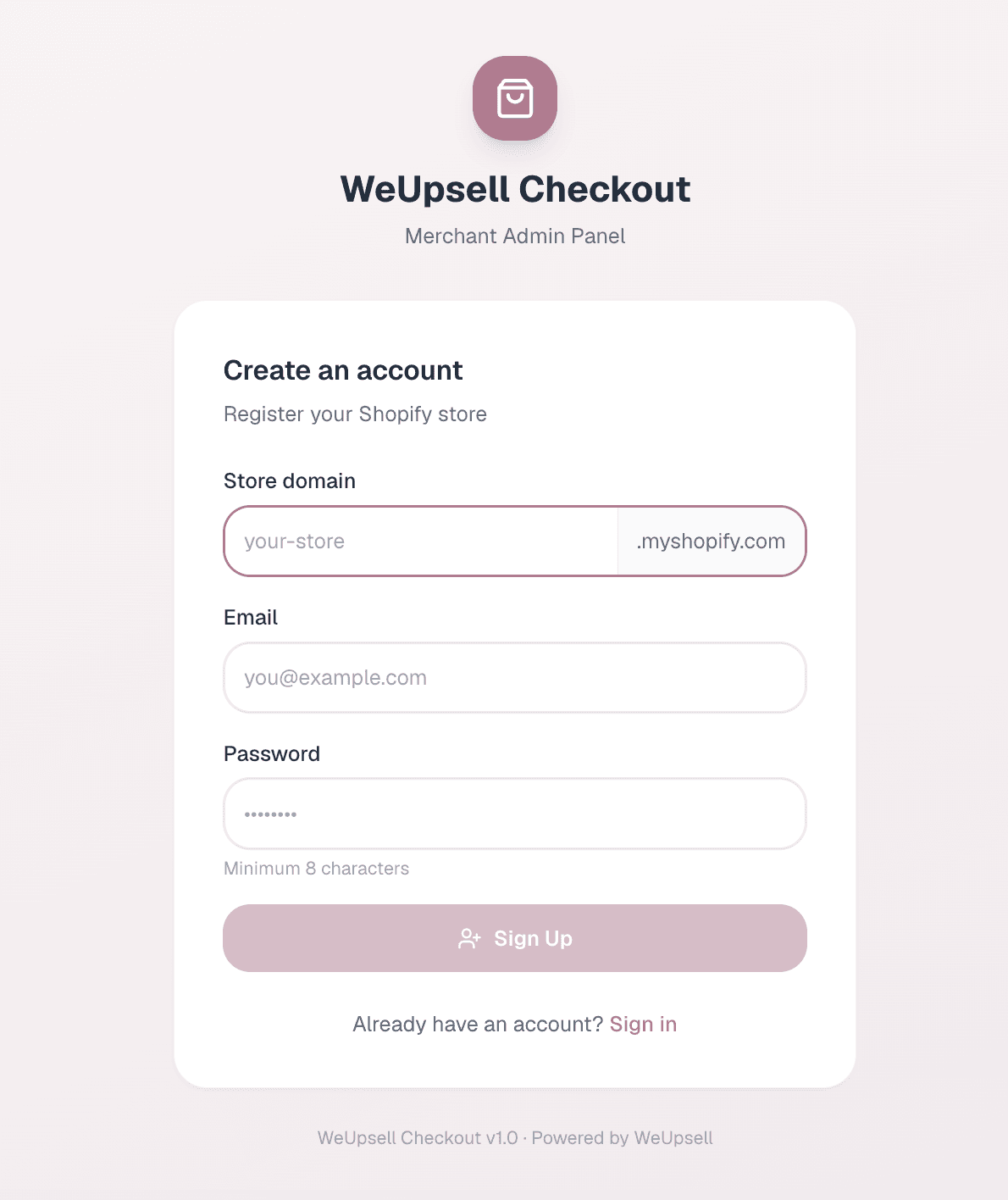
1Step 1: Create Your WeUpsell Checkout Account
Visit the WeUpsell Checkout registration page:
https://ai.weupsell.com/signup
Fill in the following information:
- Shopify Store URL (your-store.myshopify.com)
- Email Address
- Password
Click Sign Up to create your account.
Tip: You can find your Shopify store URL in Shopify Admin → Settings → Domains. It looks like your-store.myshopify.com.
2Step 2: Contact the WeUpsell Onboarding Team
After creating your account, contact our onboarding team to begin setup. Our team will reach out to you within 1 hour and guide you through the process.
During onboarding, our team will:
- Reach out to understand your store and setup needs
- Guide you through connecting WeUpsell Checkout
- Help you review and set up checkout options
- Answer any installation questions
- Confirm everything is working correctly
3Step 3: Get Help Completing Your Setup
Our onboarding team will contact you and help you complete your WeUpsell Checkout setup. We guide you through the process — we don't make changes to your store without your involvement.
During setup, our team will help you:
- Connect your Shopify store to WeUpsell Checkout
- Review and set up your checkout options
- Confirm your store data is linked correctly
- Test that checkout is working as expected
- Get your WeUpsell dashboard ready to use
Once setup is complete, your store will be ready to start using WeUpsell Checkout.
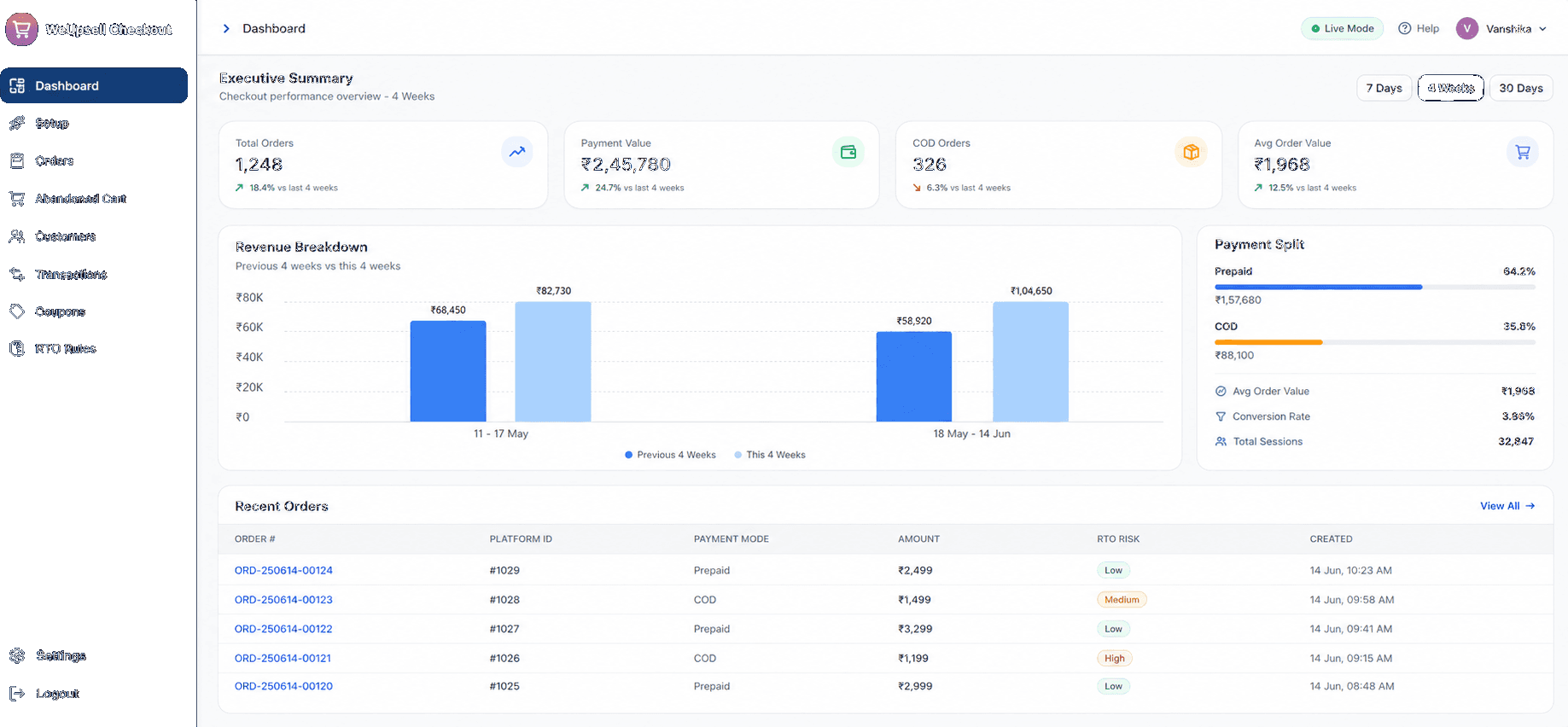
4Step 4: Verify Your Dashboard
After setup, log in to your WeUpsell dashboard and confirm these sections are available:
- ✓Orders — View and manage all checkout orders in one place.
- ✓Abandoned Carts — Track incomplete checkouts and recover lost sales.
- ✓Customers — Access your customer information and purchase history.
- ✓Transactions — Review payment activity and transaction records.
- ✓Coupons — Create and manage discount coupons for checkout offers.
- ✓RTO Rules — Configure Return-to-Origin (RTO) rules to reduce delivery risks.
If all sections are visible, your setup has been completed successfully.
5Step 5: Start Managing Your Checkout
Your WeUpsell Checkout is ready. From your dashboard, you can:
- Monitor incoming orders in real time
- Recover abandoned carts
- Review customer activity
- Track transactions and payments
- Create checkout coupons
- Configure RTO rules
- Optimize checkout performance and increase conversions
Check your dashboard regularly to keep your checkout running smoothly.
❓ Frequently Asked Questions
How long does the installation take?
Most Shopify stores are set up within 15–30 minutes after our onboarding team contacts you.
Do I need any coding knowledge?
No. Our onboarding team will contact you and guide you through the complete setup.
Will my existing Shopify data be affected?
No. WeUpsell securely connects with your Shopify store without affecting your existing products, customers, or orders.
Can I uninstall WeUpsell later?
Yes. You can disconnect WeUpsell from your Shopify store at any time.
Is my Shopify data secure?
Yes. WeUpsell uses secure connections and follows industry best practices to protect your store data.
How can I contact support?
You can reach us on WhatsApp or phone at +91 79904 88965, or click Help inside your WeUpsell dashboard.