
📋 Before You Start
- ✓WeUpsell – AI Upsell & Cross Sell is installed on your Shopify store.
- ✓Your products have been synced with WeUpsell.
- ✓The WeUpsell Theme Extension is enabled.
1Step 1: Open the Product Page Template
To start configuring your product page offers:
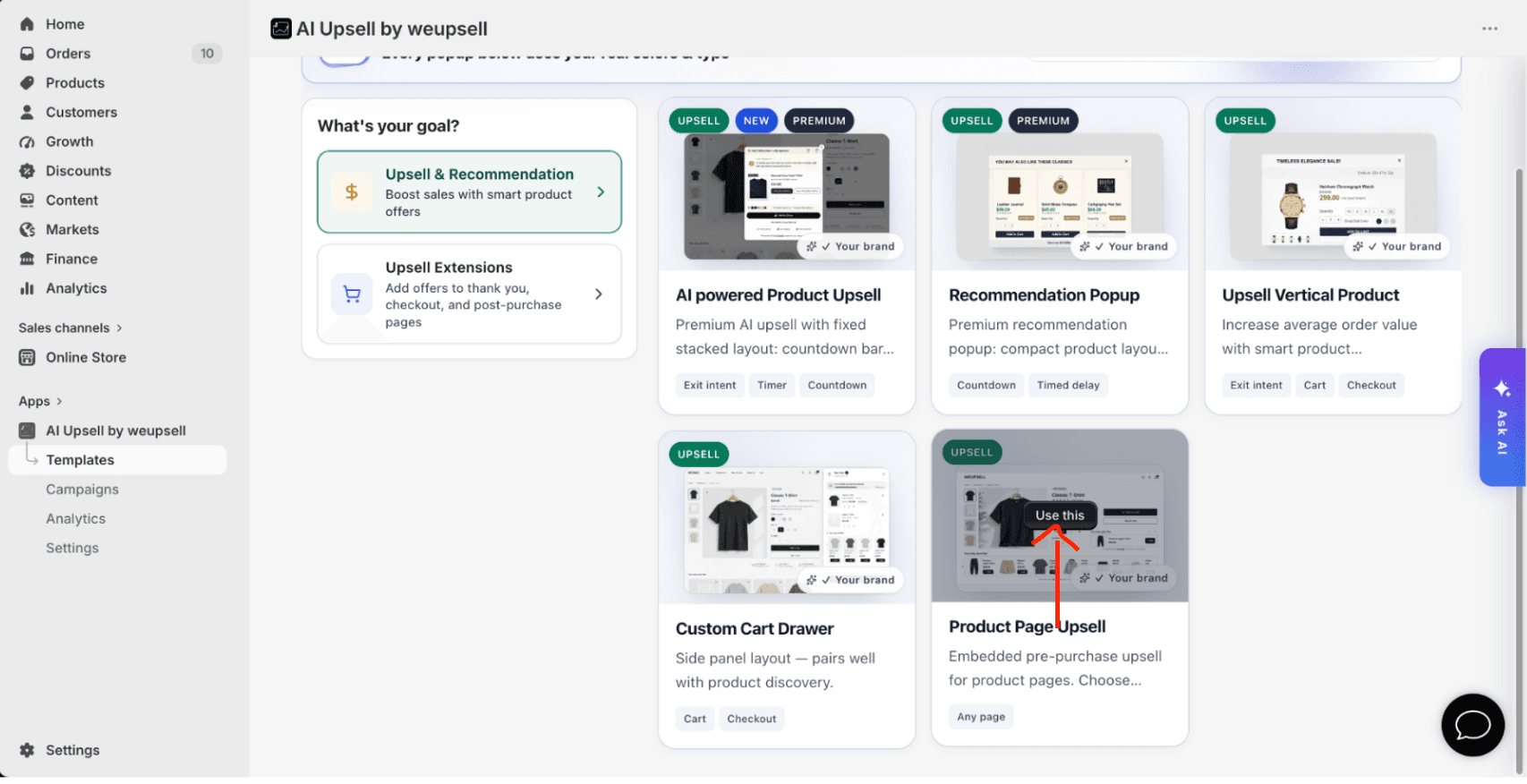
- From your Shopify Admin, go to Apps → AI Upsell by WeUpsell.
- Click Templates.
- Under Upsell & Recommendation, select Product Page Upsell.
This opens the Product Page template editor where you can customize your AI recommendation section.
2Step 2: Customize the Recommendation Layout
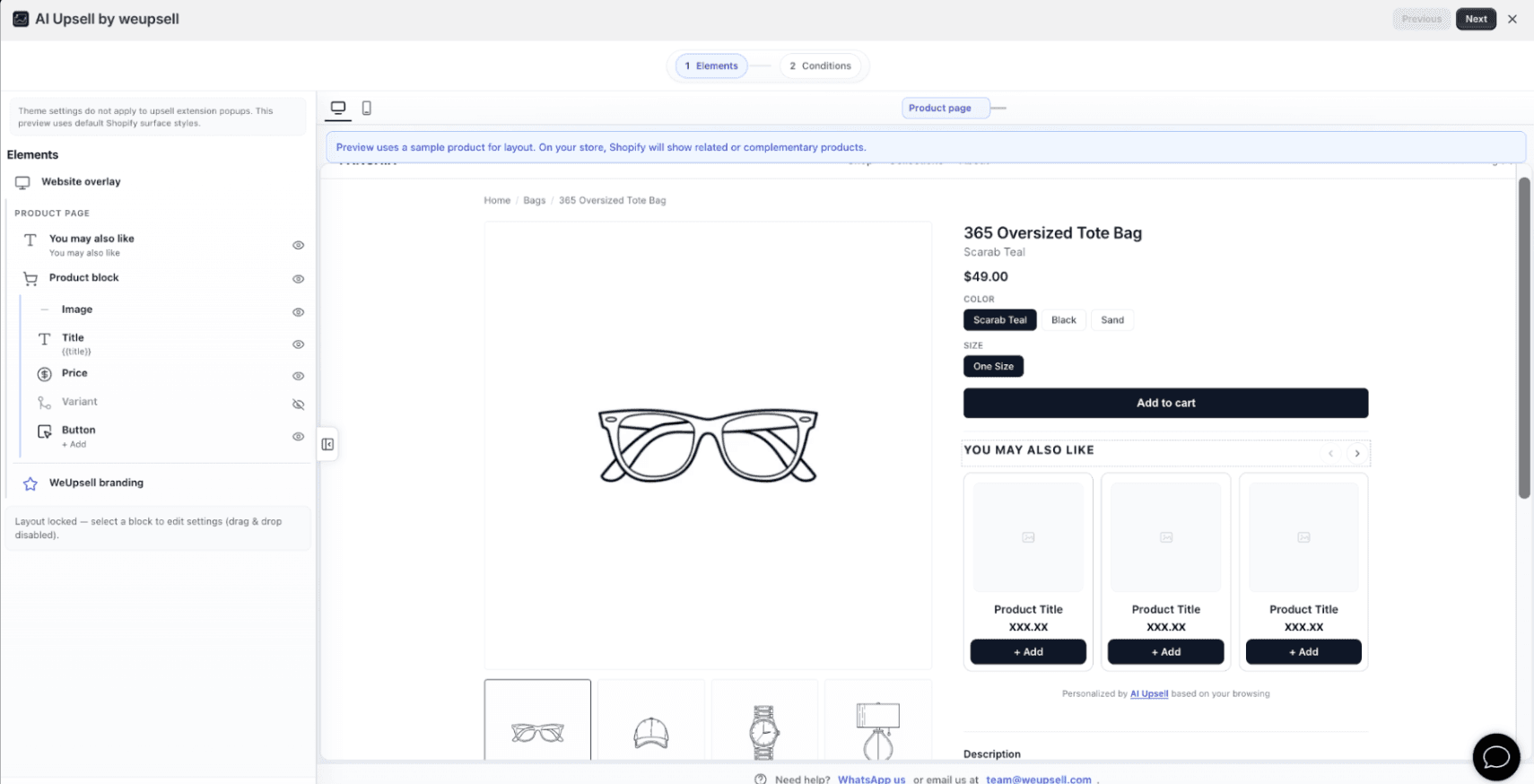
The template editor lets you customize how recommendations will appear on your product page. You can configure:
- Recommendation heading
- Product image
- Product title
- Product price
- Add button text and styling
- WeUpsell branding visibility
The preview uses sample products to demonstrate layout settings. On your live store, WeUpsell automatically displays AI-recommended products based on what customers are viewing.
3Step 3: Configure Product Recommendation Settings
Scroll to the Product settings panel in the left sidebar to customize recommendation generation. Available options:
- Recommendation layout structure.
- Number of products to display.
- Recommendation source (AI Related Products by default).
- Product links action (open in same or new tab).
By default, WeUpsell AI dynamically recommends related products that are most relevant to the product the customer is browsing.
4Step 4: Review Your Template
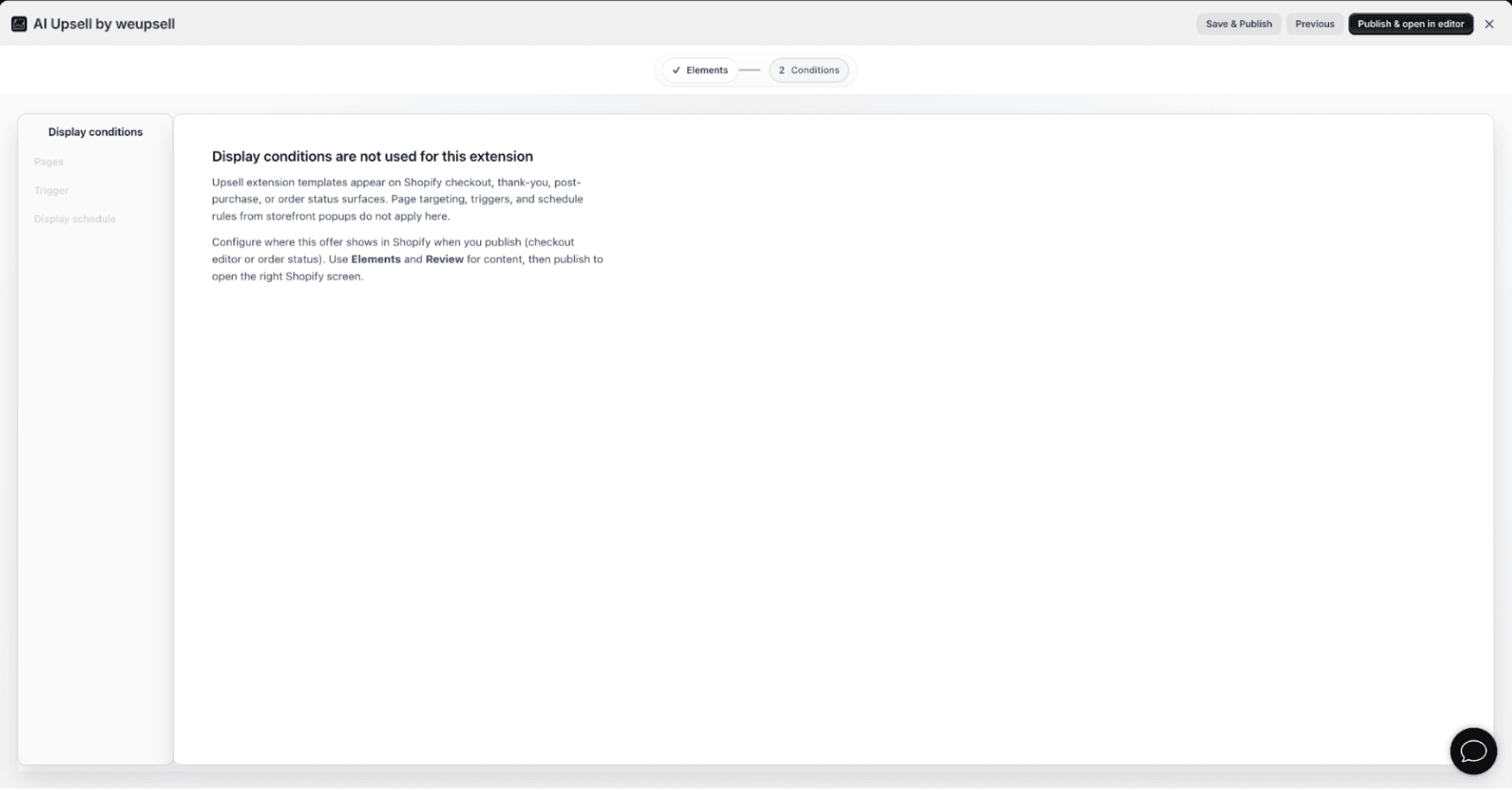
After completing your customization, click Next.
Note: Unlike storefront popups, Product Page Recommendations do not use Display Conditions because they are rendered directly via Shopify's Theme Editor app blocks.
Review your configuration, and click Save & Publish.
5Step 5: Select a Product Page Layout
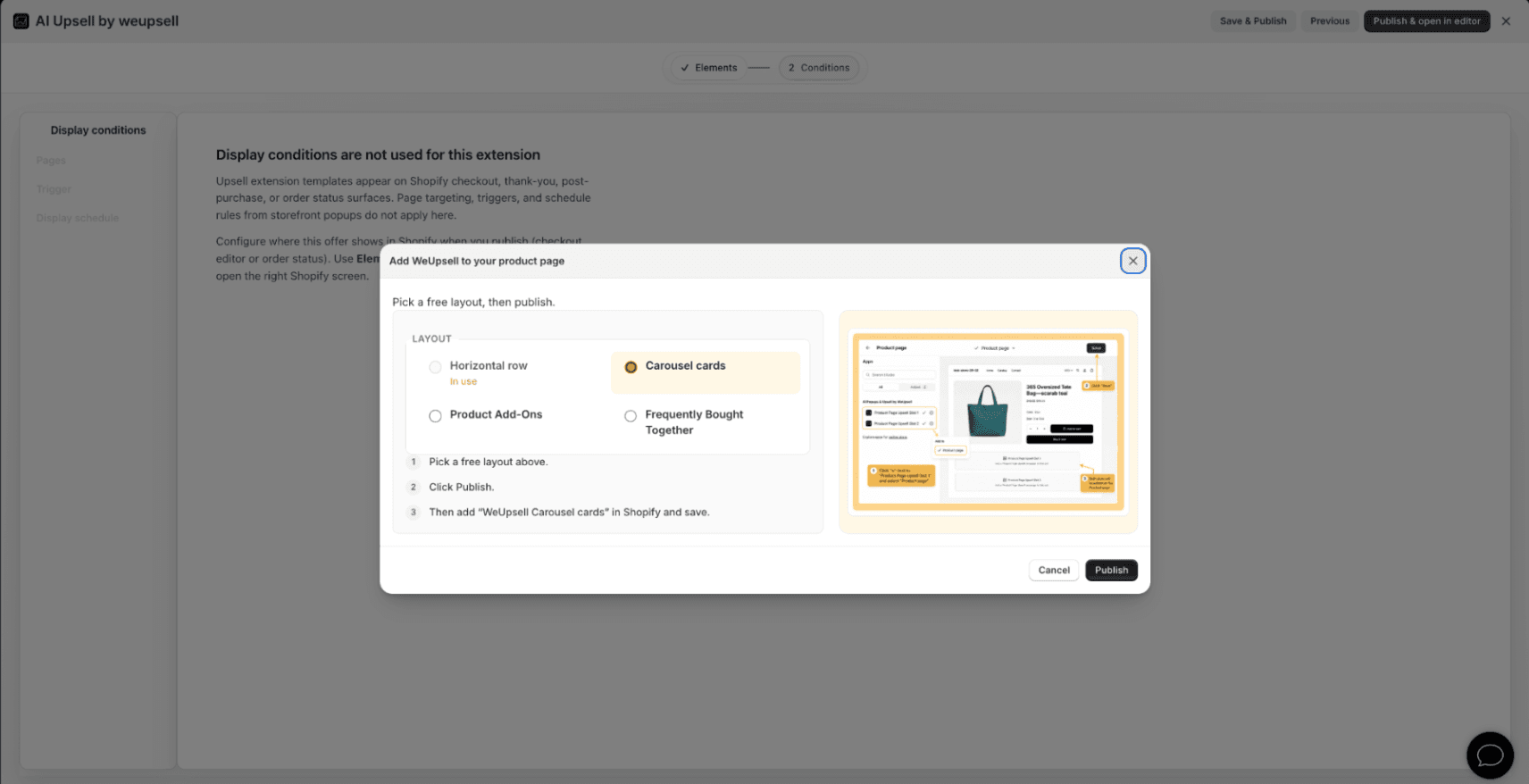
Before publishing, choose the visual layout you want to use:
- Horizontal Row: Displays recommendations in a single line.
- Carousel Cards: Displays products in a scrollable carousel.
- Product Add-Ons: Shows optional products customers can add with one click.
- Frequently Bought Together: Recommends products commonly purchased together as a bundle.
After selecting your layout, click Publish.
6Step 6: Add the WeUpsell App Block in Shopify
After publishing, the Shopify Theme Editor will open automatically:
- Open your Product template page.
- Under the Apps section, click Add block.
- Search for WeUpsell.
- Select the app block that matches the layout you published (e.g. WeUpsell Carousel Cards, WeUpsell Horizontal Row, WeUpsell Product Add-Ons, WeUpsell Bought Together).
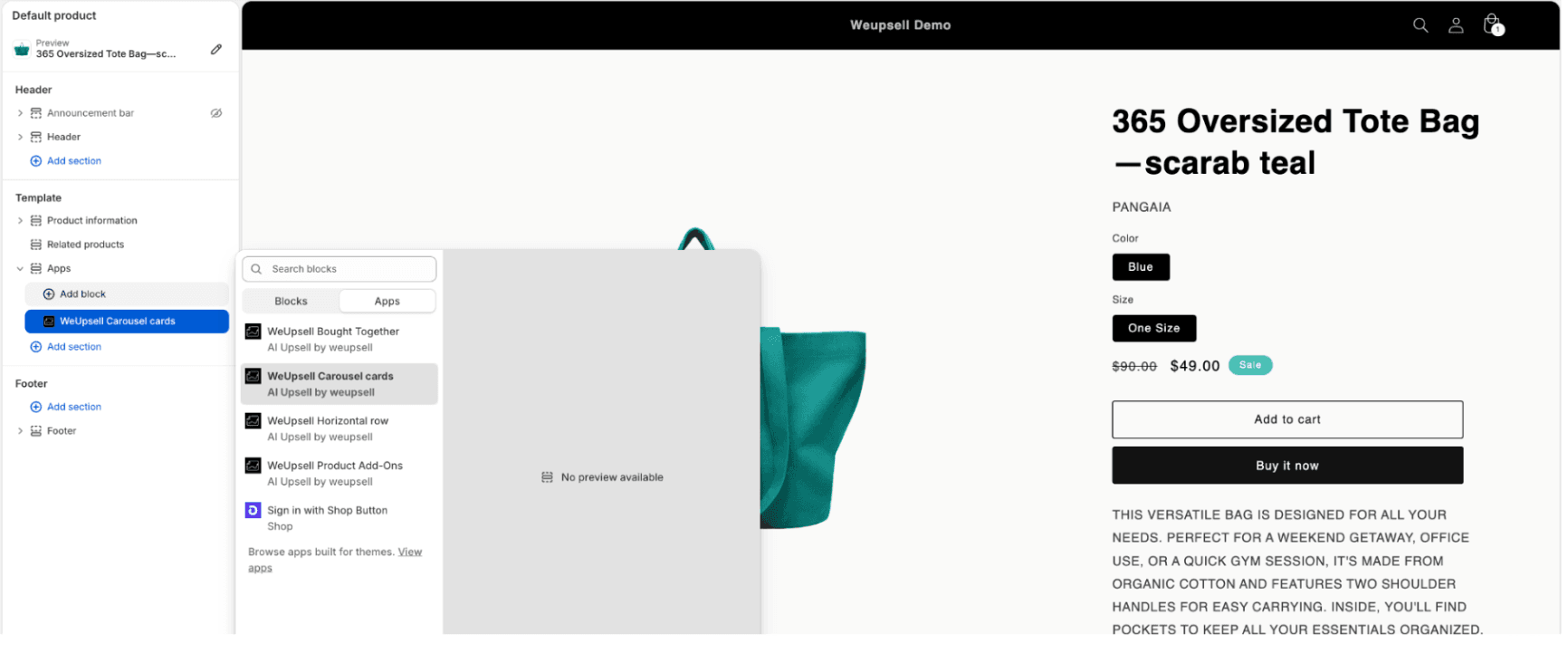
7Step 7: Position the Recommendation Block
Move the WeUpsell app block to the location where you want recommendations to appear on your product page. We recommend:
- Directly below the Add to Cart button
- Below the main product information
- Above the product description
- Between product details and native related products
Displaying recommendations close to the purchase section helps customers discover additional items before completing checkout.
8Step 8: Save the Theme
Once positioned:
- Click Save in the Shopify Theme Editor.
- Wait for theme changes to be live on your store.
Your AI Product Recommendations are now live on your Shopify product pages.
✓ Verify Your Setup
- ✓The recommendation section is displayed on product pages.
- ✓AI-recommended products load correctly.
- ✓Product images, titles, and prices match your catalog.
- ✓Customers can add recommended products directly from the block.
🛠️ Troubleshooting
The recommendation section isn't visible.
Check that the Product Page template has been published inside WeUpsell, the correct WeUpsell app block layout was added, and the Shopify Theme Editor has been saved.
No products are being recommended.
Verify that your products are synced with WeUpsell, AI recommendations are enabled, and your store contains other related or complementary products.
The wrong layout is displayed on the product page.
This usually happens when the added Shopify app block does not match the published template layout (e.g. if you published a Carousel layout, make sure to add the WeUpsell Carousel app block).
💡 Best Practices
- •Place recommendations below the Add to Cart button for maximum visibility.
- •Display 3–5 recommended products for a clean shopping experience.
- •Use Carousel Cards to showcase multiple products in a compact space.
- •Use Frequently Bought Together or Product Add-Ons to promote matching bundles.