
📋 Requirements
- ✓Shopify Plus is required to use Checkout UI Extensions.
- ✓The WeUpsell app must be installed.
- ✓Your store must be using Shopify Checkout Extensibility.
1Step 1: Open the Template Library
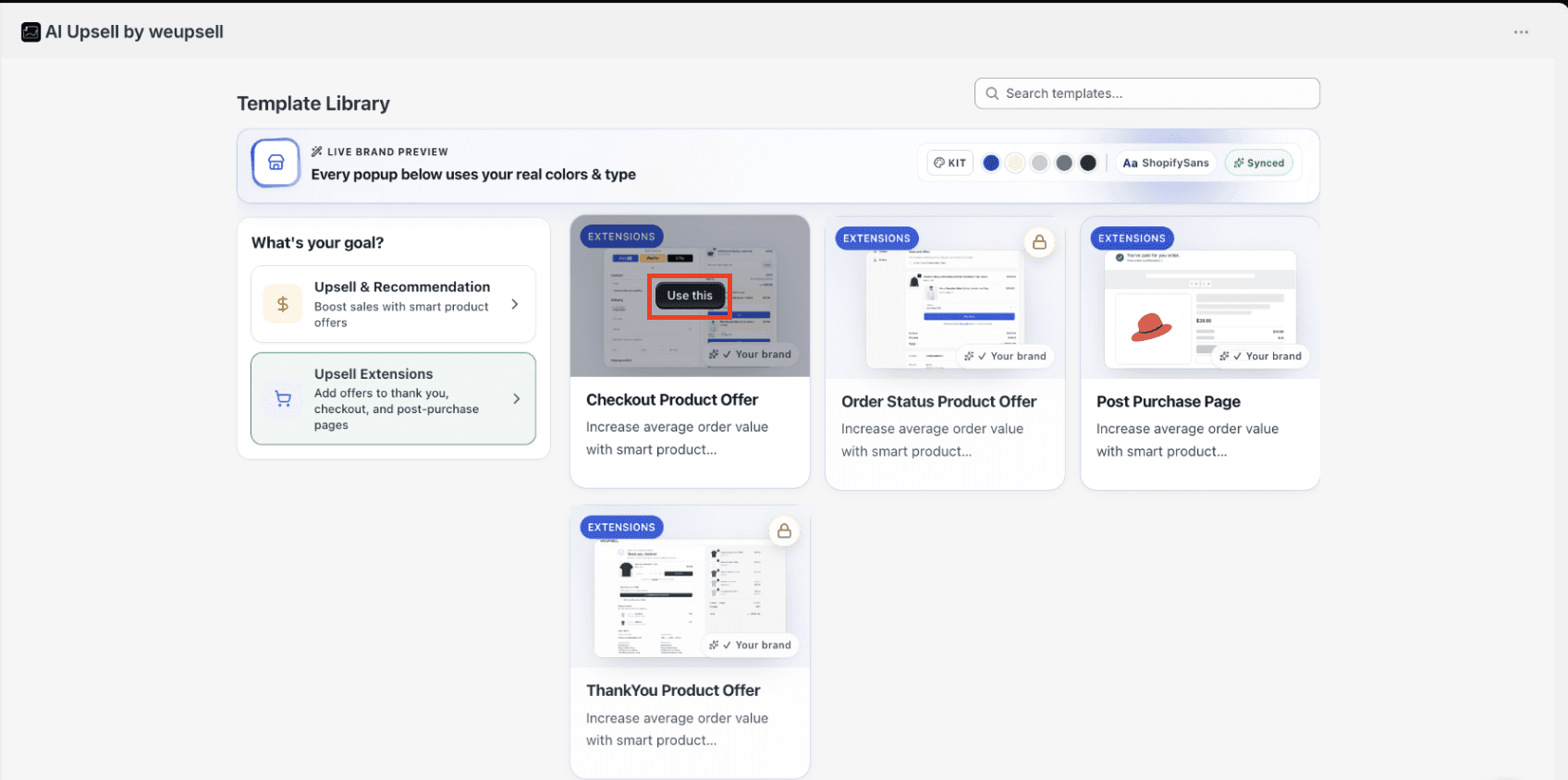
To begin, navigate to your templates inside the WeUpsell dashboard:
- Open WeUpsell from your Shopify Admin.
- Go to Templates.
- Under Upsell Extensions, select Checkout Product Offer.
This template allows you to display personalized product recommendations on the Shopify Checkout page.
2Step 2: Customize Your Checkout Offer
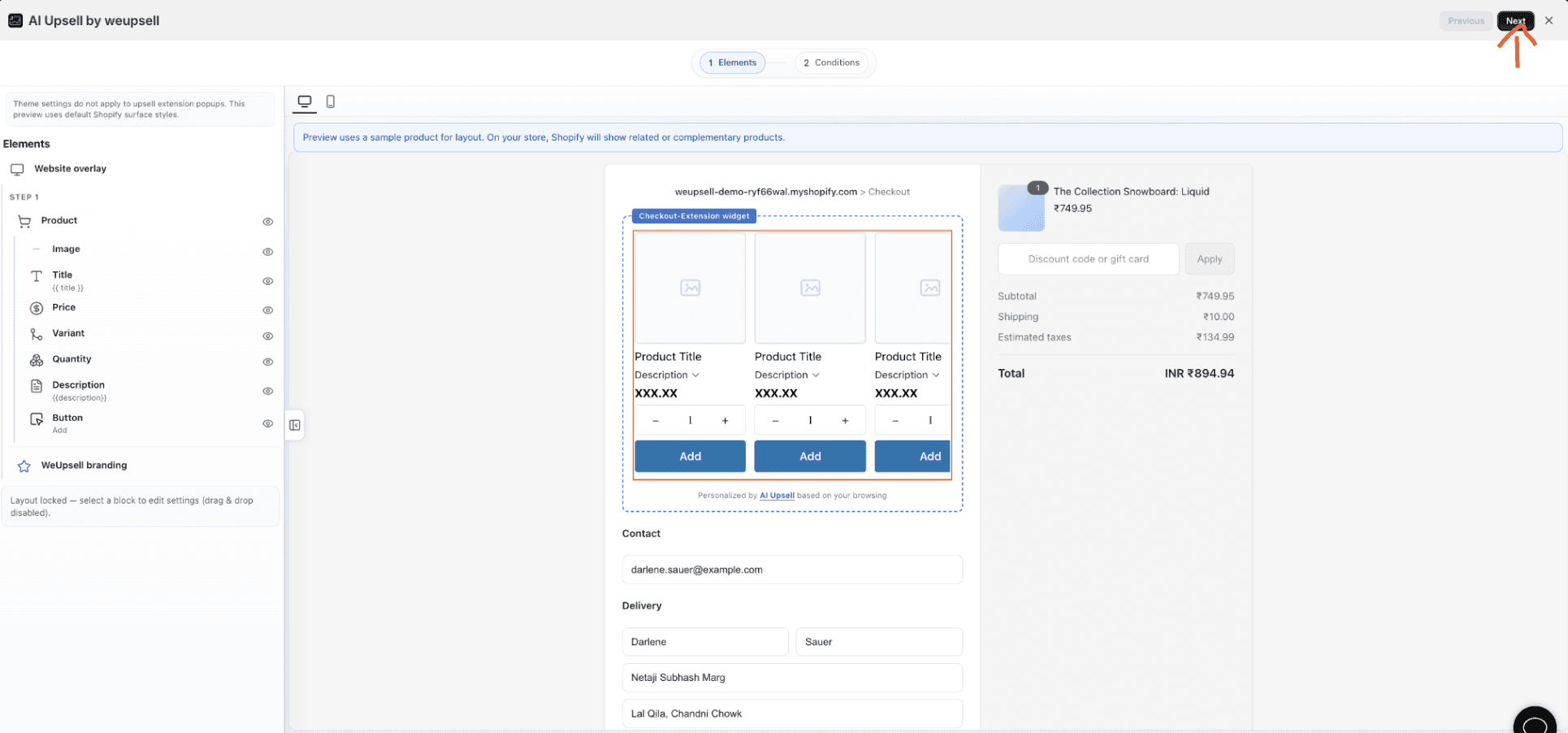
Once the template opens, you can customize every part of your checkout widget. You can configure:
- Product Image & Title
- Price Display
- Product Variants & Quantity Selector
- Product Description
- Add to Cart Button text & styling
- Branding parameters
Adjust these elements to match your store's design and branding.
Note: Shopify Checkout has styling limitations. Some theme settings (fonts, colors, spacing, etc.) are controlled directly by Shopify and cannot be fully overridden or customized.
3Step 3: Review Display Conditions
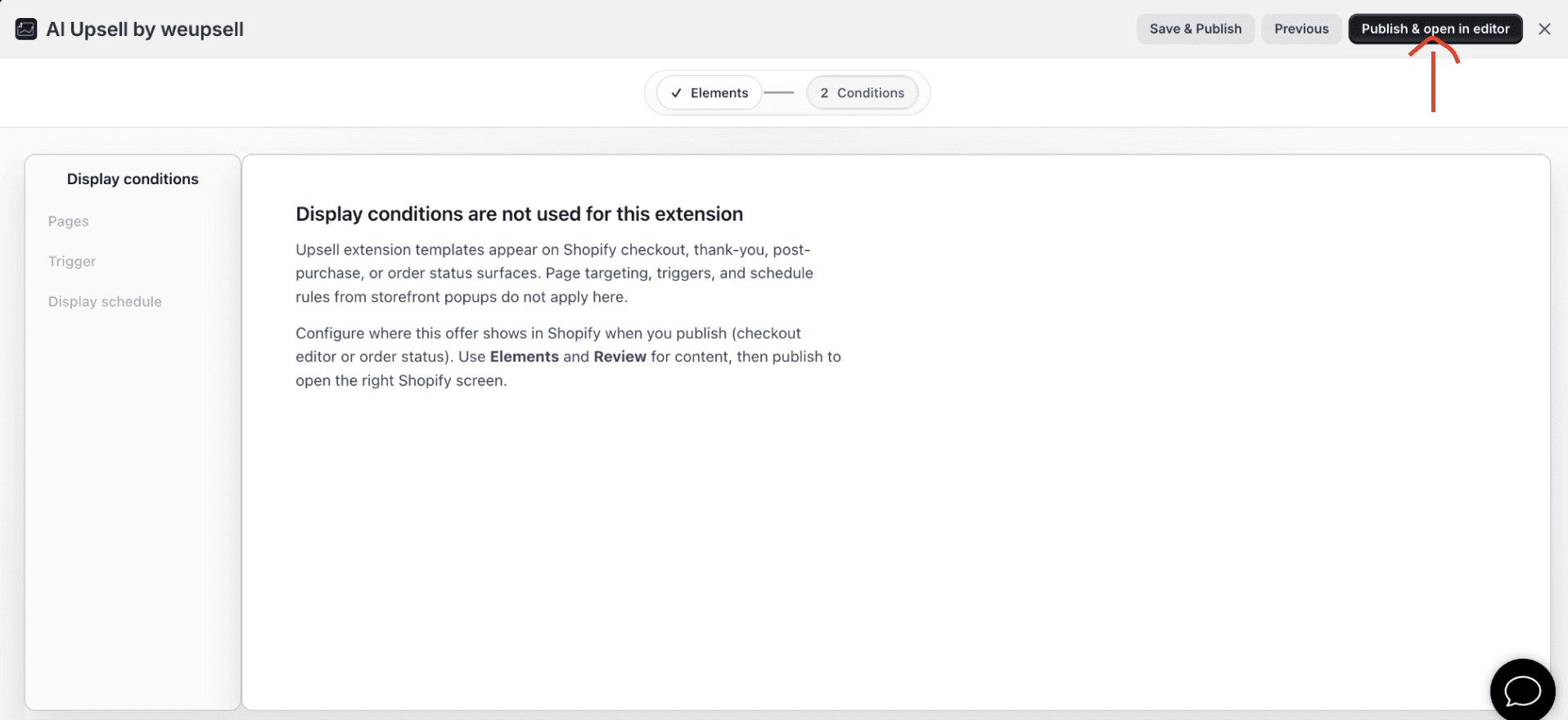
Open the Conditions tab. For Checkout Extensions, standard page targeting or popup triggers are not required. Checkout Product Offers automatically appear only on the Shopify Checkout surface after they have been added inside the Shopify Checkout Editor.
4Step 4: Publish the Template
When your design and settings are ready to go live:
- Click Publish & open in editor.
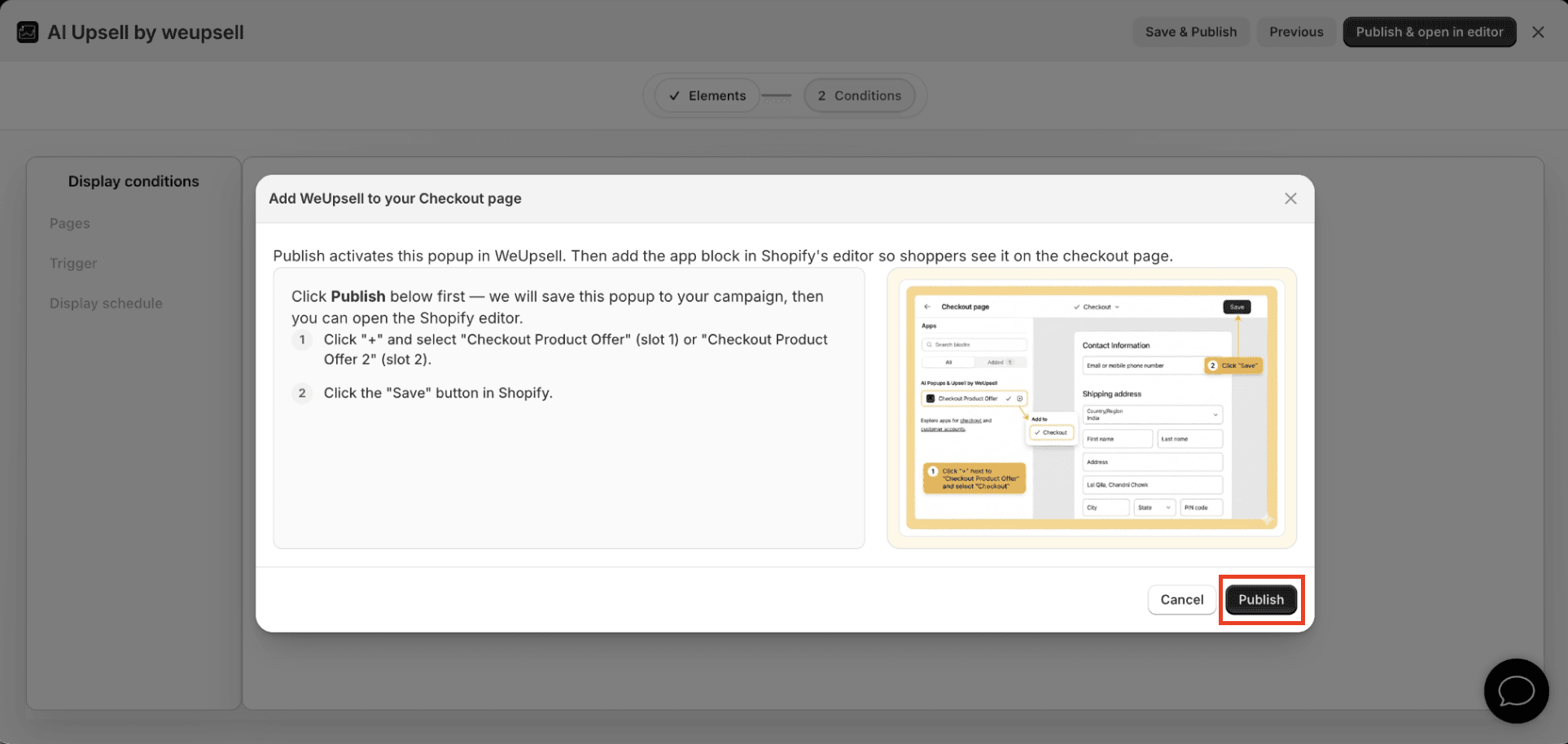
- A popup will appear with setup instructions.
- Click Publish.
This publishes the template inside WeUpsell and opens the Shopify Checkout Editor in a new window.
5Step 5: Open the Shopify Checkout Editor
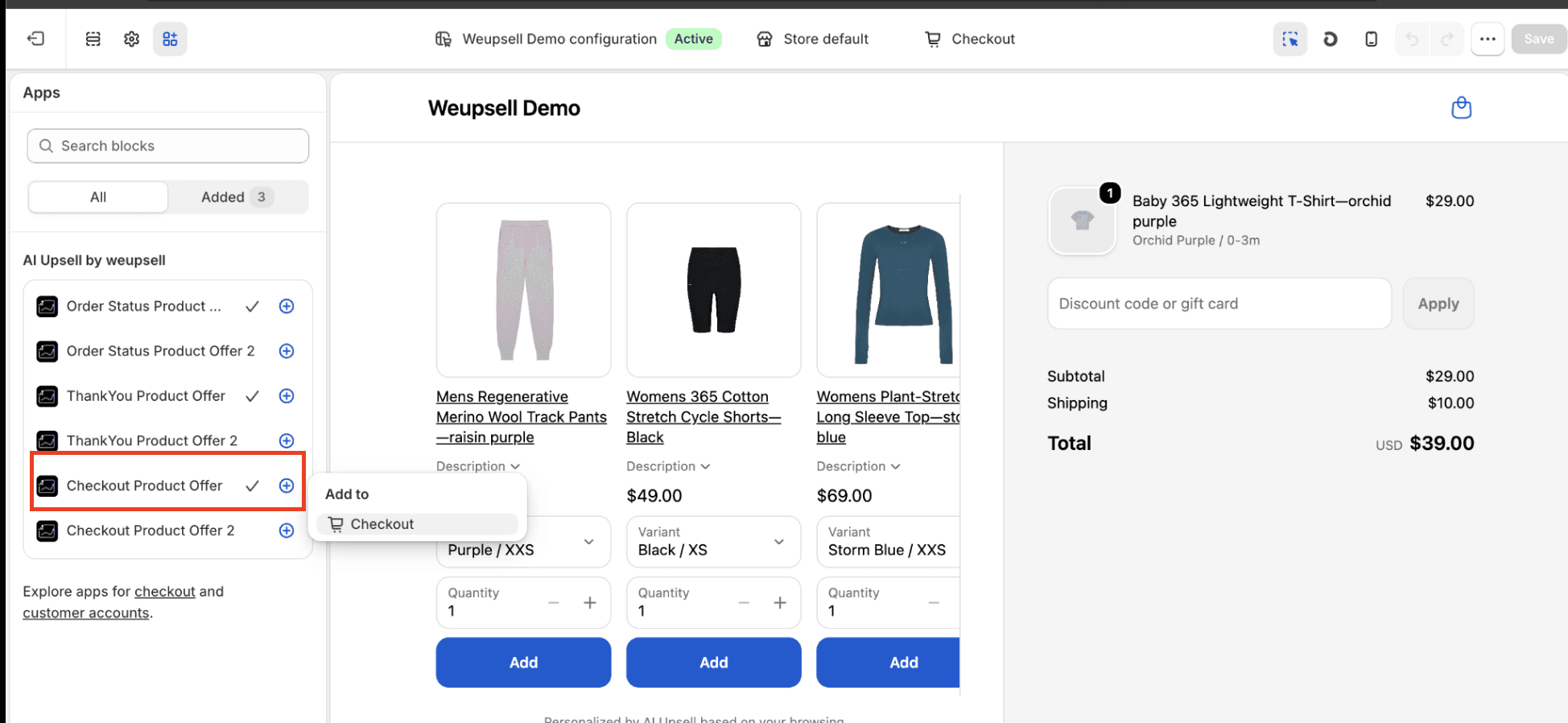
After publishing, Shopify opens the Checkout Editor automatically. You will see the available WeUpsell app blocks in the left sidebar under the Apps section:
- Checkout Product Offer
- Checkout Product Offer 2
These are the app blocks that display your custom checkout recommendations.
6Step 6: Add the WeUpsell Block
There are two ways to add the offer block to your layout:
Option 1 (Recommended)
- In the left sidebar, open Apps.
- Find AI Upsell by WeUpsell.
- Click the + icon next to: Checkout Product Offer or Checkout Product Offer 2.
- Select Checkout.
The block will be added automatically.
Option 2
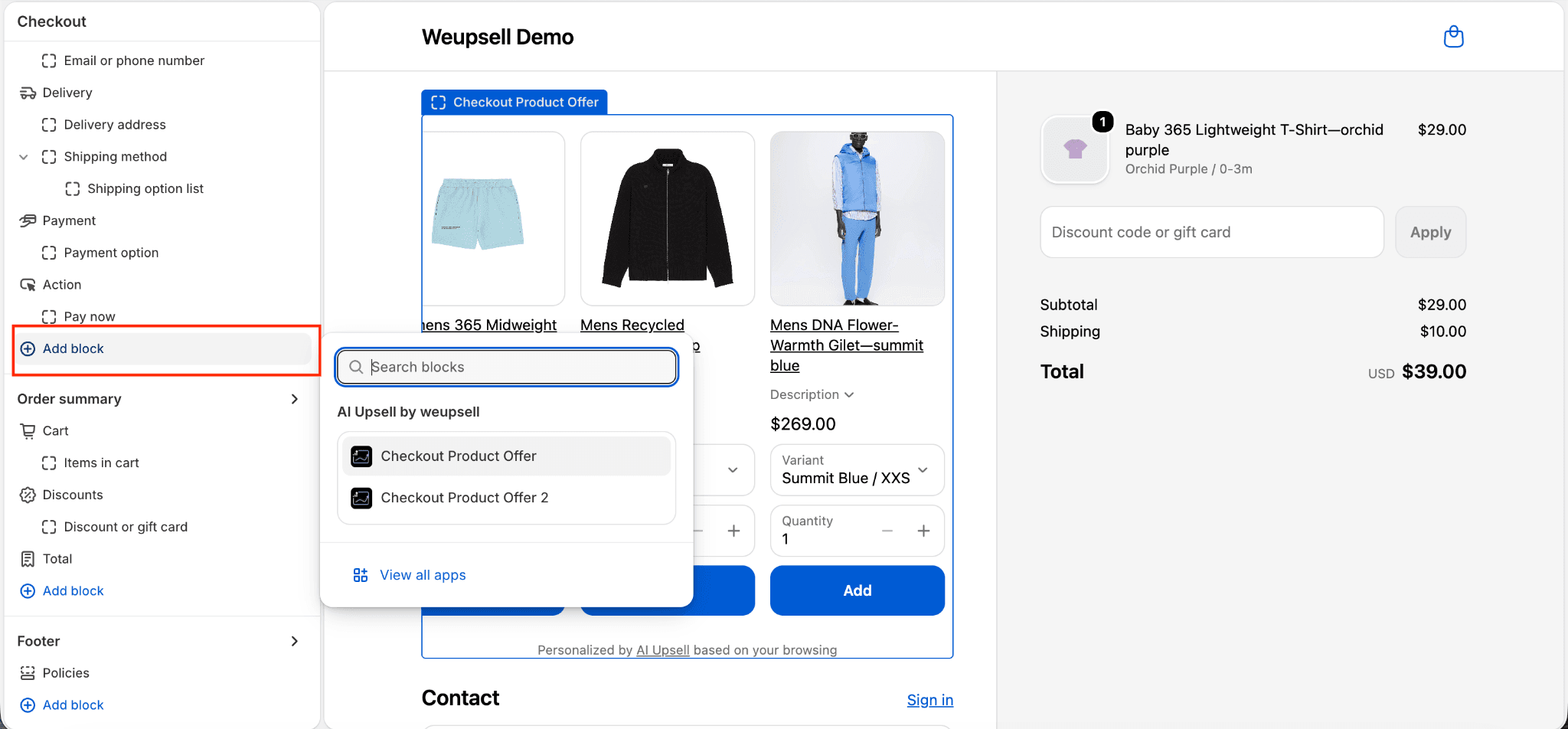
If you don't see the Apps section:
- Click Add block where you want the offer to appear.
- Search for Checkout Product Offer.
- Select the WeUpsell app block.
The product recommendation widget will be inserted into your checkout layout.
7Step 7: Position the Offer
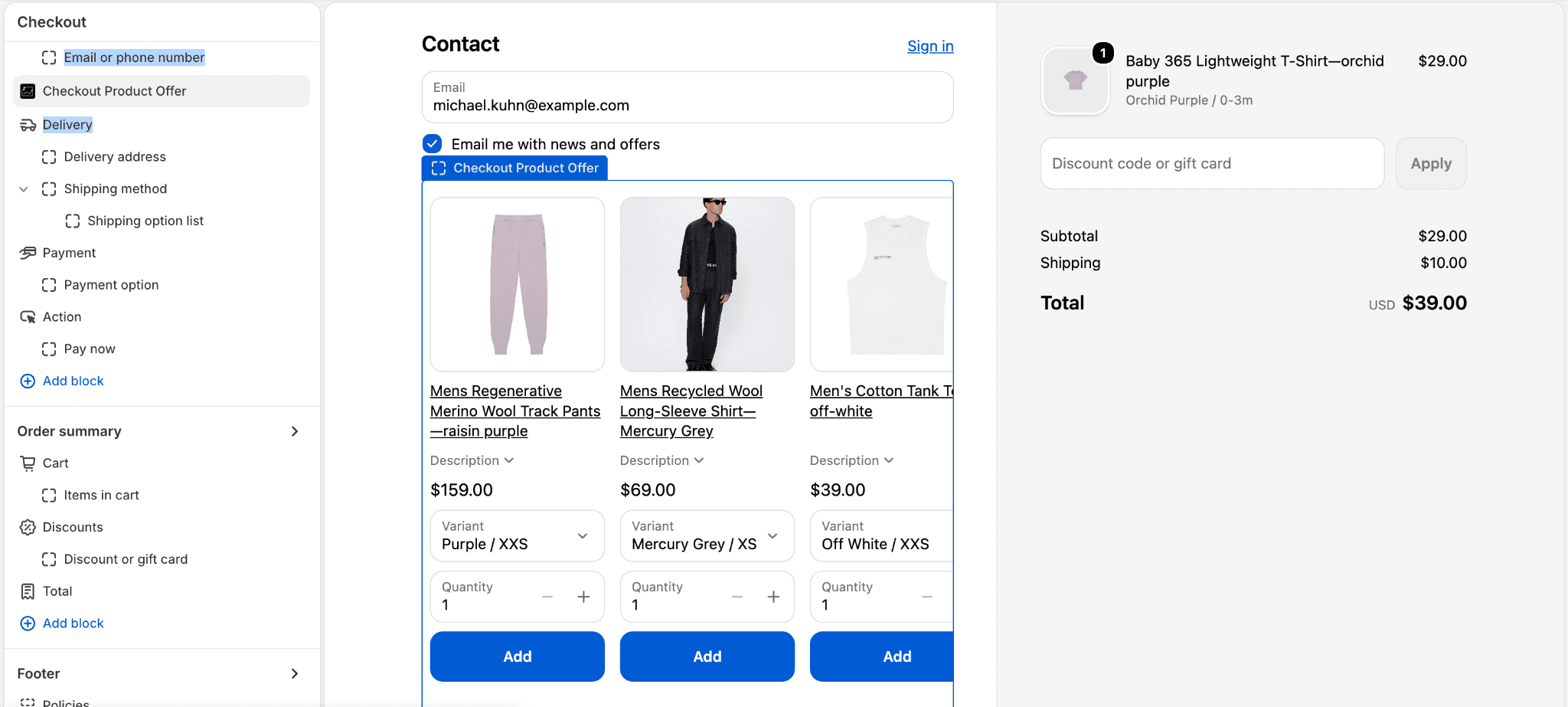
After adding the block, you can move it to your preferred location in the checkout form. Recommended placements include:
- Before Contact Information
- Between Delivery and Shipping Method
- Before Payment details
- Above the Order Summary (where supported)
Choose the placement that best fits your checkout experience.
8Step 8: Save Your Checkout
Once you are satisfied with the placement and layout:
- Click Save in the top-right corner.
- Wait for Shopify to finish saving your changes.
Your Checkout Product Offer is now live and will show up to your shoppers.
✓ Verify Your Setup
To confirm everything is working correctly on your live store:
- ✓Add a product to your shopping cart.
- ✓Proceed to the Checkout page.
- ✓Verify that your WeUpsell Checkout Product Offer block appears in the selected position.
- ✓Test clicking the Add button to verify that variant items are added successfully to your checkout order sum.
🛠️ Troubleshooting
I don't see the Checkout Product Offer block in the Shopify Editor.
Check the following details: Make sure the template has been published from the WeUpsell dashboard, you're editing the active checkout profile in Shopify, the WeUpsell app is installed, and your store runs on Shopify Plus.
The block is listed but doesn't appear on the live Checkout page.
Be sure to click "Save" after adding the block inside the editor. Refresh the checkout page in a guest or incognito window, and test with an actual checkout session rather than relying solely on the editor preview.
My live checkout design looks different from the WeUpsell template preview.
The preview uses sample products and placeholders. On your live store, WeUpsell automatically pulls personalized recommendations and displays actual catalog products dynamically matching your customer's cart context and purchase history.