
📋 Before You Begin
- ✓Install WeUpsell – AI Upsell & Cross Sell in your Shopify store.
- ✓Open an existing template or create a new one.
- ✓Select the Product block from the left panel.
- ✓Scroll down to the Products to offer section.
1Step 1: Open the Products to offer settings
- From your Shopify Admin, open Apps → WeUpsell – AI Upsell & Cross Sell.
- Open the template you want to edit.
- Click the Product block from the left sidebar.
- Scroll down to Products to offer.
- Click the dropdown to choose how products should be selected.
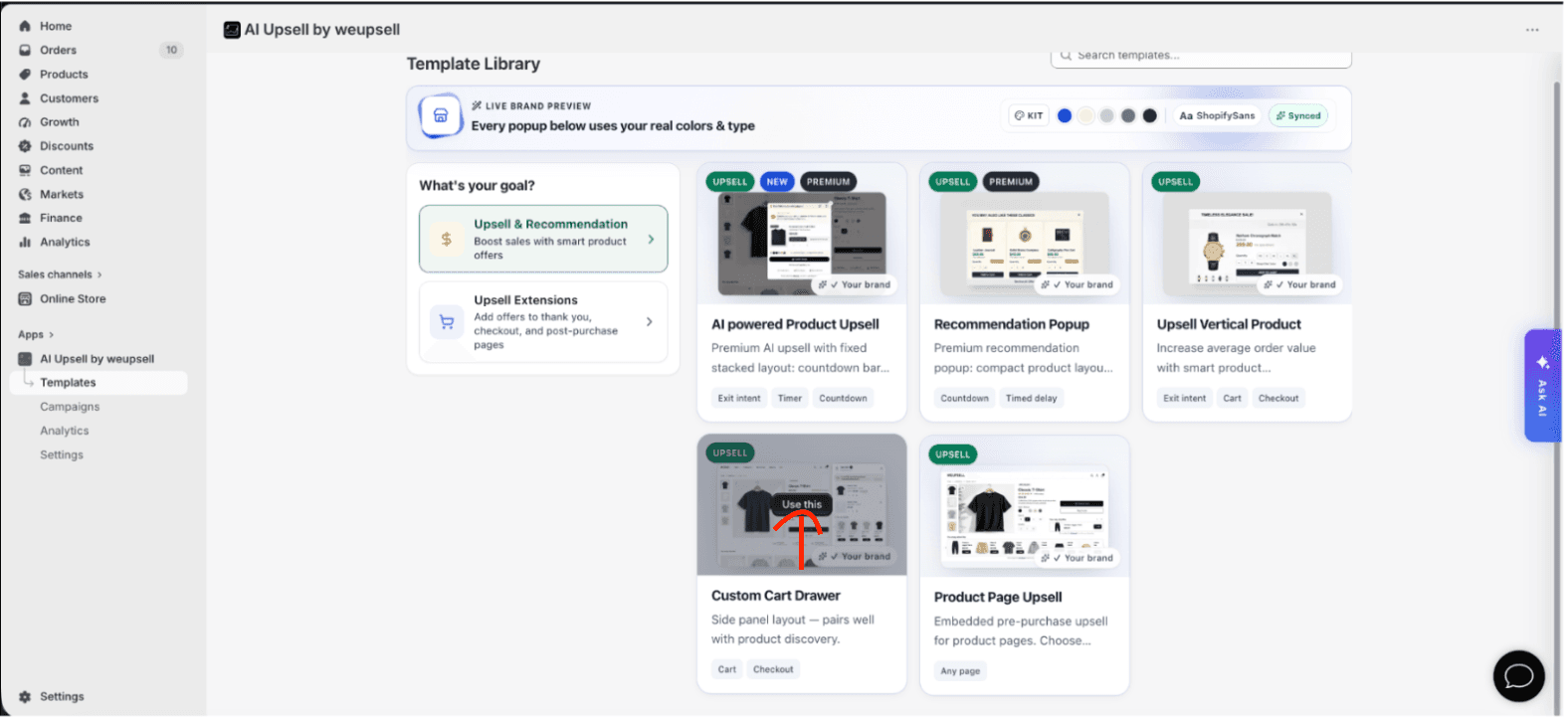
2Step 2: Choose Your Product Selection Option
WeUpsell offers 9 different recommendation methods to fit any marketing strategy:
Option 1: Specific Product(s)
Use this option when you want to display the exact same products to every customer. Best for featured products, best sellers, or seasonal campaigns.
- Select Specific Product(s) from the dropdown.
- Click Select Products.
- Search and choose one or more products.
Option 2: Products from Collection(s)
Display products from one or more Shopify collections. This option is ideal if you want recommendations to update automatically whenever products are added or removed from a collection.
- Select Products from Collection(s).
- Click Select Collection and choose your collections.
Option 3: Product with Specific Title
Recommend products based on their product title matching. Best for specific product series or collections with similar naming conventions.
- Select Product with Specific Title.
- Enter the product title string you want to match.
Option 4: Product with Specific Tag
Recommend products that contain a specific Shopify product tag (e.g. Bestseller, Premium, Organic).
- Select Product with Specific Tag.
- Enter the product tag string.
Option 5: Product with Specific Vendor
Display products from a particular Shopify vendor. Best for multi-brand stores or vendor-specific sales promotions.
- Select Product with Specific Vendor.
- Enter or select the vendor name.
Option 6: Recommended by WeUpsell AI (Related Products)
Automatically recommend products using WeUpsell AI. This is the easiest option because no manual product selection is required. WeUpsell AI analyzes customer behavior and catalog details to recommend the most relevant related products.
- Select Recommended by WeUpsell AI (Related Products) from the dropdown.
- No further configuration needed! AI handles selections on-the-fly.
Option 7: Smart Recommendations (Complementary Products)
Display complementary products that you've configured in Shopify Search & Discovery. Unlike AI recommendations, complementary products must first be assigned inside Shopify.
- Install and open the Shopify Search & Discovery app.
- Set up complementary products for each item.
- In WeUpsell, select Smart Recommendations (Complementary Products).
Option 8: Same Vendor as Cart/Order Product
Automatically recommend other products from the same brand or vendor as the product currently in the customer's cart or order. Best for brand-focused promotions.
Option 9: Same Tags as Cart/Order Product
Recommend products that share the same Shopify tags as the item in the customer's cart or order. Best for promoting similar styles or related item categories.
📊 Recommendation Methods Summary
| Option | Manual Setup | Description |
|---|---|---|
| Specific Product(s) | Yes | Always display the products you manually select. |
| Products from Collection(s) | Yes | Display products from selected Shopify collections. |
| Product with Specific Title | Yes | Recommend products that match a product title keyword. |
| Product with Specific Tag | Yes | Display products with a specific Shopify tag. |
| Product with Specific Vendor | Yes | Show products from a selected vendor or brand. |
| Recommended by WeUpsell AI | No | AI automatically recommends related products based on buyer activity. |
| Smart Recommendations (Complementary) | Shopify setup required | Display complementary products configured in Shopify Search & Discovery. |
| Same Vendor as Cart/Order Product | No | Recommend products from the same vendor as the current cart/order item. |
| Same Tags as Cart/Order Product | No | Recommend products sharing tags with the current cart/order item. |
3Step 3: Save Your Changes
After choosing your preferred recommendation method:
- Click Save & Publish in the top-right corner.
- If you're editing an Online Store template, publish the template block inside your active Shopify theme.
- Visit your storefront and open the page where the widget is displayed to verify that the correct products are being recommended.