.png&w=48&q=75) App Install
App InstallHow to turn your order confirmation page into a revenue channel — what it is, why it works, and how to set it up step-by-step using AI Upsell by WeUpsell.
Who this is for: Shopify store owners who want to increase revenue without spending more on ads.
Every Customer Sees Your Thank You Page. Most Stores Waste It.
Here is a fact that should change how you think about your store: 100% of customers who complete a purchase see your thank you page. Not 40%. Not 60%. Every single buyer lands on it.
And what does the average Shopify thank you page show them? An order confirmation number. A shipping address. Maybe a "Continue Shopping" button. That's it. A dead end.
Meanwhile, the customer sitting on that page just made a decision to trust your brand. Their credit card is used. Their guard is completely down. They're in the best mood they'll be in during their entire relationship with your store — the warm, satisfied feeling of having bought something they wanted.
This is the thank you page upsell opportunity. And most Shopify merchants are sitting on it doing absolutely nothing.
This guide covers everything: what the thank you page actually is, how it differs from the post-purchase page, why it converts, how to set it up correctly in 2025 using AI Upsell by WeUpsell, and the strategies that turn a generic confirmation screen into a consistent revenue channel.
What Is the Shopify Thank You Page?
The thank you page — also called the order confirmation page — is the final screen customers land on after their checkout is fully complete.
Here is exactly where it sits in the Shopify flow:
- Customer clicks "Pay now"
- Payment processed ✓
- Post-purchase page (optional upsell interstitial)
- THANK YOU PAGE ← You are here
- Customer leaves / continues shopping
By default, Shopify's thank you page shows: order confirmation number, "Your order is confirmed" message, order details (products, shipping address, payment method), email confirmation notice, and a "Continue shopping" button.
It is functional. It is not a revenue channel. Not until you make it one.
Thank You Page vs Post-Purchase Page — Know the Difference
This is the most common confusion among Shopify merchants, and it matters because the two pages work differently and convert differently.
| Post-Purchase Page | Thank You Page |
|---|---|
| Between payment and confirmation | After full checkout is complete |
| No — one-click adds to original order | Yes — new transaction needed (or coupon for next order) |
| Very high (customer mid-checkout) | High (customer just finished) |
| One-click add-ons to current order | Product offers, discounts for next order, loyalty, referrals |
| Typical conversion rate: 10–20% | Typical conversion rate: 5–12% |
| Risk to original order: Zero | Risk to original order: Zero |
Both pages are valuable. They serve different purposes. The post-purchase page is for adding to the current order. The thank you page is for deepening the relationship and driving the next purchase.
Why the Thank You Page Converts So Well
The thank you page does not have the raw urgency of the post-purchase page, but it has something arguably more powerful: pure trust.
By the time a customer reaches your thank you page, they have committed to your brand with their payment, received confirmation that the transaction was successful, entered a positive, relief-filled emotional state, and have zero anxiety about whether the purchase was a good idea (that comes later).
This emotional window is genuinely unique. It does not happen on your product pages. It does not happen in your emails. It only happens right here.
Three psychological forces make thank you page upsells work:
- The "reward mindset" — Customers who just bought something feel like they've treated themselves. Offering a complementary product in that moment feels like extending the treat, not being sold to.
- 100% viewership — Unlike emails (20–30% open rate) or retargeting ads (2–5% click-through), every buyer sees this page. Your upsell gets automatic exposure to your entire converting audience.
- Zero cart abandonment risk — The original sale is already done. If the customer declines your upsell, you lose nothing. It is a pure upside scenario.
What You Can Show on the Thank You Page (And What Actually Works)
The thank you page is more flexible than the post-purchase page. You are not limited to one-click add-ons — you can use it for multiple types of offers and engagement.
Product Upsell / Cross-Sell Widget
Show a relevant product offer directly on the confirmation page. Unlike the post-purchase page, this usually requires the customer to go through a new mini-checkout or click through to the product page — so the friction is slightly higher. This is why offer relevance matters even more here.
What works: Complementary products, accessories, consumable refills, product upgrades. What doesn't: Random bestsellers with no connection to what was just bought.
Discount Code for Next Purchase
Show a time-limited discount code — "Use THANKYOU15 for 15% off your next order, valid for 48 hours." This converts well for repeat-purchase categories (skincare, supplements, food, pet products) where customers will naturally buy again.
Key: Make the timer real. 48 hours that actually expire. Codes that reset every time customers revisit kill trust permanently.
Referral / Share Prompt
"Loved your purchase? Share it and get ₹200 store credit." The thank you page is the highest-intent moment to ask for a referral because the customer is at peak satisfaction. Most referral programs underperform because they ask at the wrong time — usually via email days later when enthusiasm has faded.
Loyalty Program Sign-Up
"You've already earned 50 points on this order — sign up to claim them." Framing the loyalty sign-up as something they've already partially earned dramatically increases opt-in rate compared to a generic "Join our loyalty program" prompt.
Product Review / Survey Request
A single-question survey ("What made you decide to buy today?") placed on the thank you page gets response rates of 15–30% — far higher than post-purchase email surveys. Keep it one question. The data you collect is genuinely useful for improving your marketing.
How to Set Up Thank You Page Upsells Using AI Upsell by WeUpsell
Based on the actual setup flow visible in WeUpsell's interface, here is the complete step-by-step process.
Step 1: Open the Template Library and Select ThankYou Product Offer
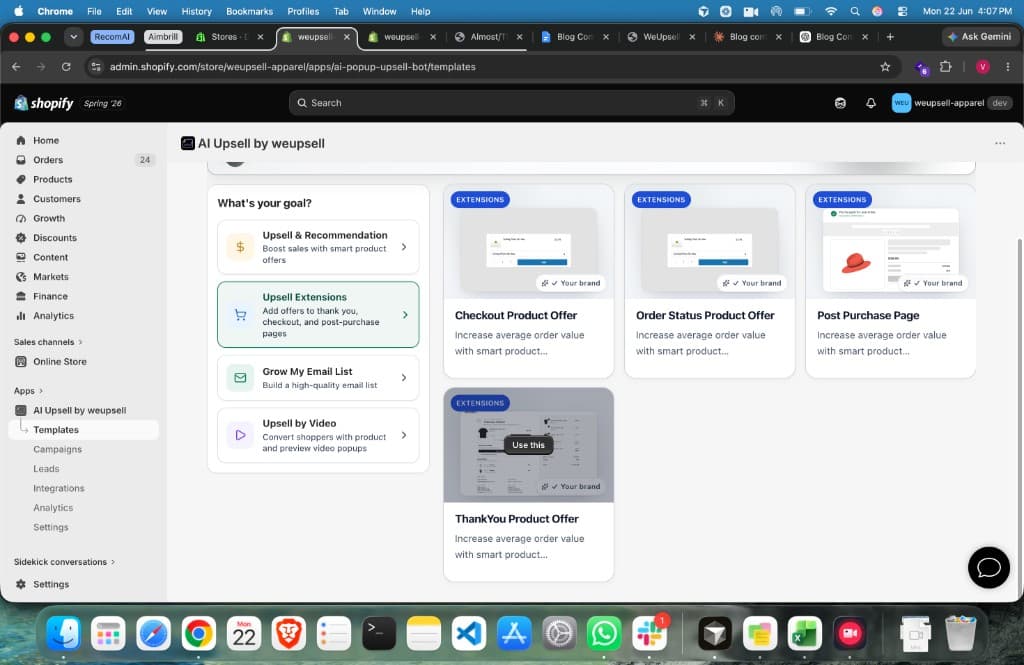
In your Shopify admin, open AI Upsell by WeUpsell → Templates. In the Template Library, click Upsell Extensions from the left sidebar. You will see four extension templates: Checkout Product Offer, Order Status Product Offer, ThankYou Product Offer, and Post Purchase Page. Click "Use this" on the ThankYou Product Offer card.
Step 2: Configure Your Product in the Elements Panel
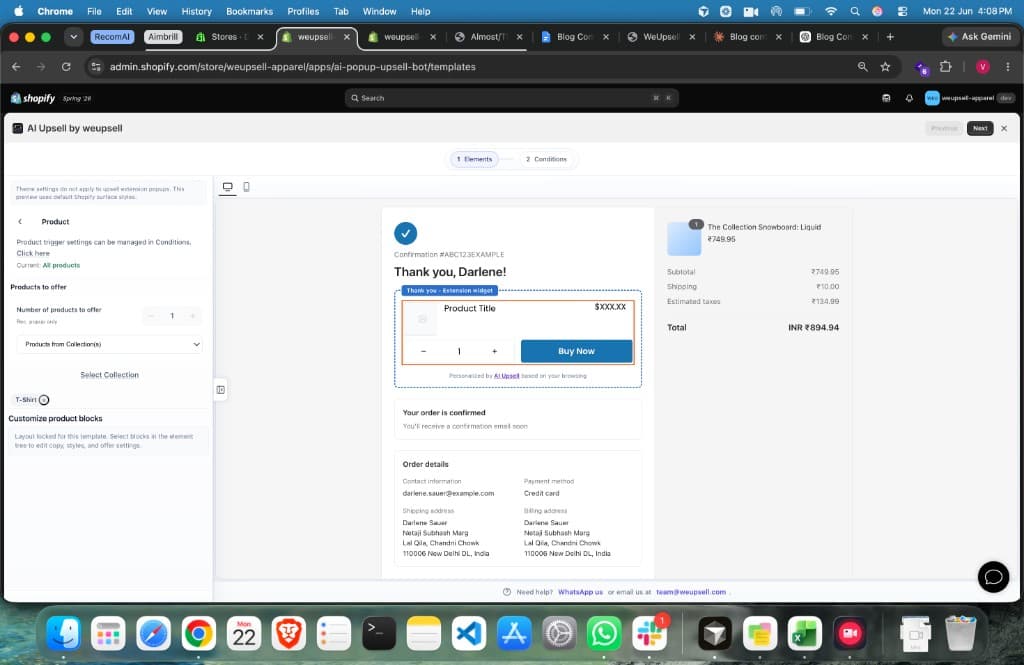
The editor opens with two steps: Elements and Conditions. In the Elements panel (Step 1):
- Keep "Number of products to offer" at 1
- Under "Products to offer," choose Specific product(s)
- Select the product you want to show — pick something directly relevant to your bestseller or the product most customers are likely to have just purchased
- Set "Discount Setting" if you want to show an exclusive offer price
The right-side preview panel shows a live preview of how the upsell widget appears on the thank you page — including the product image, discounted price, variant selector, quantity selector, and a "Buy Now" button. The label "Thank you - Extension widget" confirms this is WeUpsell's thank you page block embedded into Shopify's checkout editor.
Step 3: Check the Conditions Tab
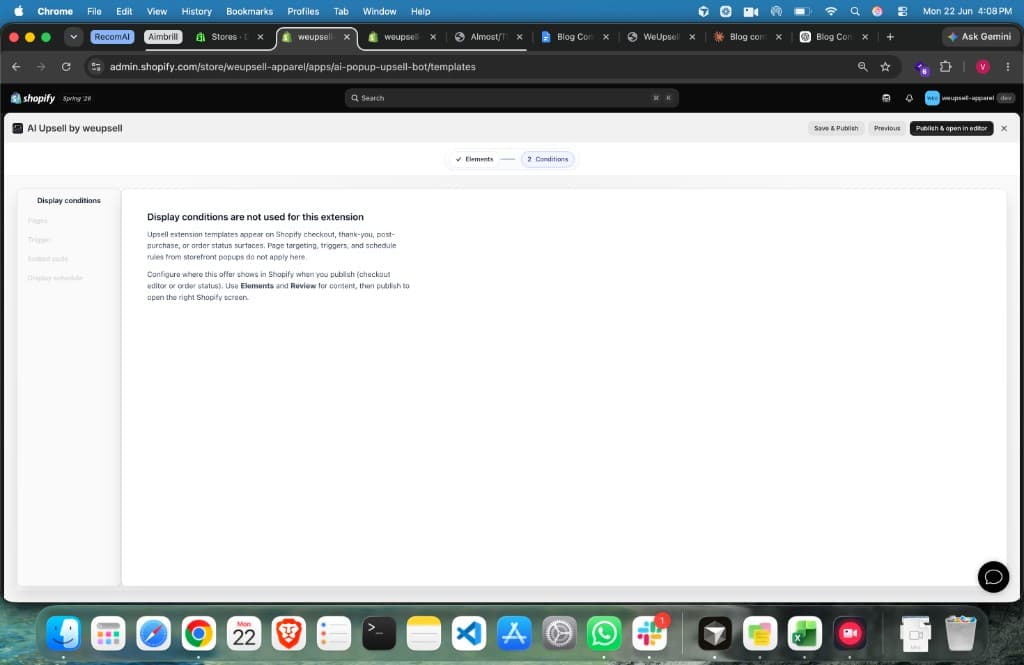
Click Next to move to Conditions (Step 2). You will see: "Display conditions are not used for this extension." Same as the post-purchase extension — the thank you page extension triggers based on the checkout event. Page targeting and schedule rules are for storefront popup campaigns, not checkout extensions.
Step 4: Publish and Open in Shopify's Checkout Editor
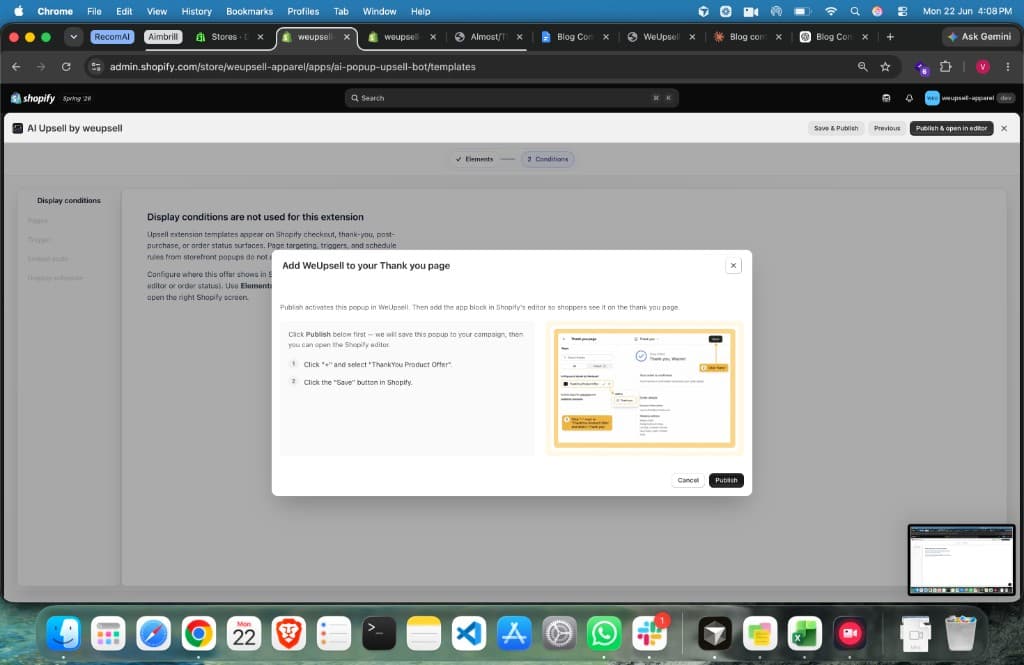
Click "Publish & open in editor." A modal appears: "Add WeUpsell to your Thank you page." It confirms that publishing activates the campaign in WeUpsell, then you add the app block in Shopify's editor so shoppers see it on the thank you page. Click Publish — WeUpsell saves the campaign and opens Shopify's checkout editor.
Step 5: Add the WeUpsell Block in Shopify's Checkout Editor
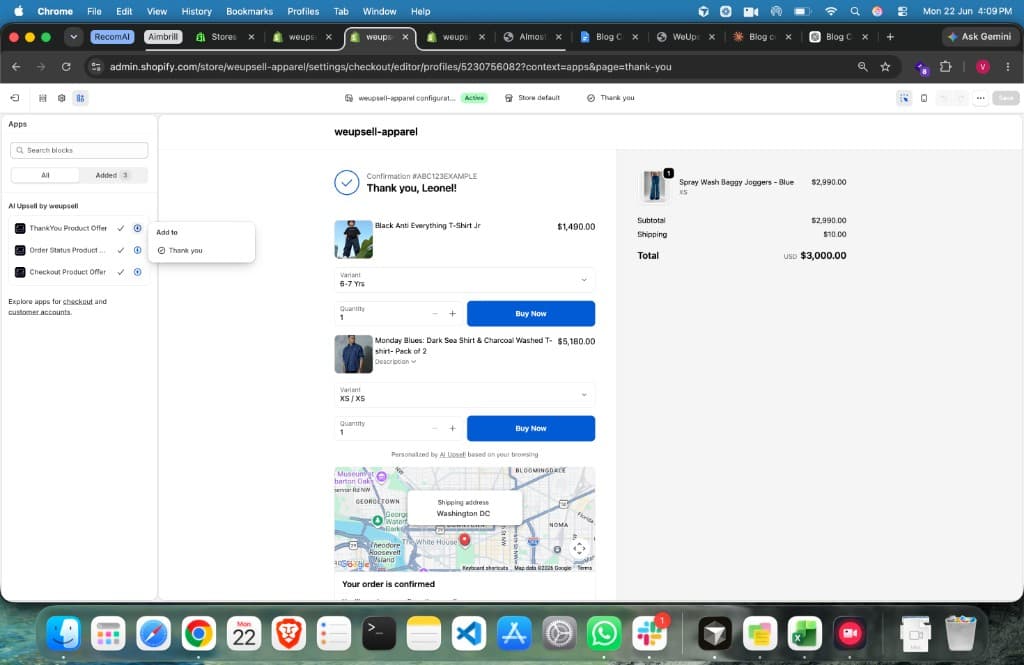
This is the step that completes the setup. In Shopify's checkout editor (which opens at the Thank You page context), you will see the Apps panel on the left with available WeUpsell blocks. Click the "+" icon next to ThankYou Product Offer, then select "Add to → Thank you." The WeUpsell upsell widget is now embedded in your thank you page layout. Click Save.
Important: This is the correct method as of 2025. The old way — pasting scripts into Settings → Checkout → Additional Scripts — was made view-only by Shopify on August 28, 2025. All thank you page customization now goes through Shopify's checkout editor using app blocks.

Step 6: Test With a Real Order
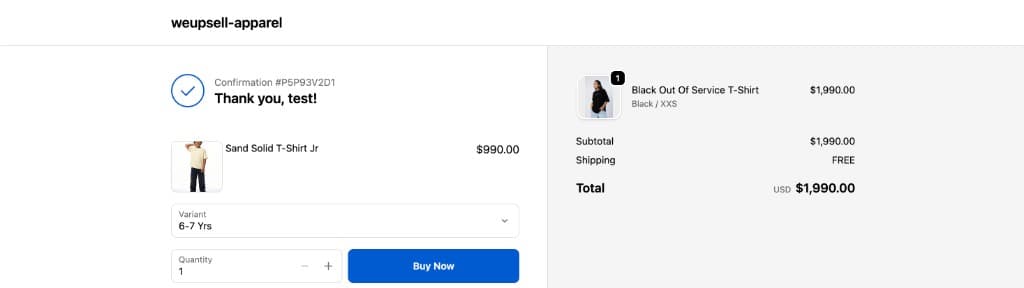
Place a test order using Shopify's bogus gateway. Go through full checkout. On the thank you page, confirm:
- The WeUpsell product offer widget appears correctly
- Product image, price, variant selector, and "Buy Now" button are visible
- The page layout looks correct on both desktop and mobile
- Clicking "Buy Now" takes the customer through the expected flow
6 Strategies to Maximize Thank You Page Upsell Conversions
Getting the setup right is step one. Here is what separates stores with 3% thank you page conversion from stores hitting 10–12%.
1. Place the Upsell Widget Above the Order Details
The order summary (shipping address, payment method, items ordered) is what most customers scroll down to read. Your upsell widget needs to appear before that section — in the upper portion of the page, while attention is high. If your upsell is buried below the order details, most customers never see it.
2. Keep the Offer Tightly Relevant to What Was Just Purchased
The thank you page is not the place for your full catalog. If someone just bought a skincare cleanser — offer the matching toner or SPF. If someone bought a camera — offer a lens cleaning kit or extra battery. Generic "customers also bought" carousels underperform targeted single-product offers every time.
3. Use "Buy Now" Language, Not "Add to Cart"
On the thank you page, customers are not in browsing mode. They are in completion mode. "Buy Now" or "Get This Too" performs better than "Add to Cart" because it matches their current mental state — they are done deliberating.
4. Show the Discount as Savings, Not Just a Price
Weak: "$269.00". Strong: "$269.00 ~~$455.00~~ — Save $186.00 (41%)". Anchoring the original price and showing the saving amount makes the offer feel genuinely valuable.
5. Mobile-First Design Is Non-Negotiable
Over 65% of Shopify purchases happen on mobile. Before going live, test your thank you page upsell on an actual smartphone — not just the mobile preview in the editor.
6. Offer Something Different From the Post-Purchase Page
If you are running both a post-purchase page upsell AND a thank you page upsell, they should not show the same product. Running the same offer twice in the same checkout flow annoys customers and trains them to ignore both.
Common Mistakes That Kill Thank You Page Revenue
- Using the old Additional Scripts method — As of August 28, 2025, Shopify's Additional Scripts box is view-only. All new thank you page customizations require Shopify's checkout editor with app blocks.
- Showing the upsell below the fold — If the product widget loads below the order summary, most customers on mobile never scroll to it.
- Offering the same product at the same price as your store — The offer needs to feel like it belongs on this page specifically.
- Overloading the page with offers — Pick one or two. The thank you page works best when it feels like a thoughtful next step, not a sales assault.
- Not testing on mobile before launch — Always test with a real device.
Frequently Asked Questions
It is the order confirmation page customers land on after their checkout is fully complete. By default it shows order details, but with apps like WeUpsell it becomes a surface for product offers, discounts, referrals, and more.
No. The post-purchase page appears between payment and the thank you page — it allows one-click adds to the current order with no new payment needed. The thank you page comes after and typically leads to a new transaction or a future-purchase incentive.
A well-set-up, relevant offer typically converts at 5–12%. ReConvert's data from 40,000+ merchants shows an average of around 1.7% across all stores — but optimized, product-specific offers consistently outperform that average.
Yes — but show different offers on each. The post-purchase page is for adding to the current order. The thank you page is for driving the next purchase or deepening the relationship.
Check your order history for products frequently purchased together across multiple orders. Apps like WeUpsell use AI to identify this automatically based on purchase behavior.
Your Thank You Page Upsell Launch Checklist
- Selected a product that is directly relevant to what most customers are buying
- Set an exclusive discount that isn't available at the same price elsewhere on your store
- Published the ThankYou Product Offer template inside WeUpsell
- Added the WeUpsell block via Shopify's checkout editor (not Additional Scripts)
- Saved the checkout editor configuration
- Confirmed the widget appears above the order details section
- Tested the full flow on desktop and a real mobile device
- If running a post-purchase page upsell too — confirmed the two pages show different offers
- Set a reminder to review conversion rate after 50+ orders
Final Word: A Page Every Customer Sees Should Never Be Wasted
The thank you page is the only page in your entire store that 100% of your buyers see. Every improvement you make here applies to every single customer who buys from you. No traffic required. No ads needed.
One relevant product offer, correctly placed, with an exclusive reason to act now — that is all it takes to start turning your confirmation screen into a revenue channel.
This guide covers the thank you page specifically. For the post-purchase page (the upsell surface between payment and this page), see our dedicated guide on Shopify Post-Purchase Upsells.